Start with the task
For an occasional connection, macOS Terminal and ssh may be enough. A graphical workspace is useful when saved hosts, repeated commands and parallel sessions become a daily task.
SSH CLIENT FOR MAC
When is a graphical Mac SSH client useful? Explore Docklark connection folders, authentication, tabs and split panes, with honest platform and release limits.
Reviewed · Asia/Shanghai
For an occasional connection, macOS Terminal and ssh may be enough. A graphical workspace is useful when saved hosts, repeated commands and parallel sessions become a daily task.
Docklark organizes saved connections in nested folders, with search, favorites and duplication. Label environments clearly before connecting.
Tabs, split panes and separate windows let you arrange sessions. A shared command bar can target selected sessions: always check recipients before sending.
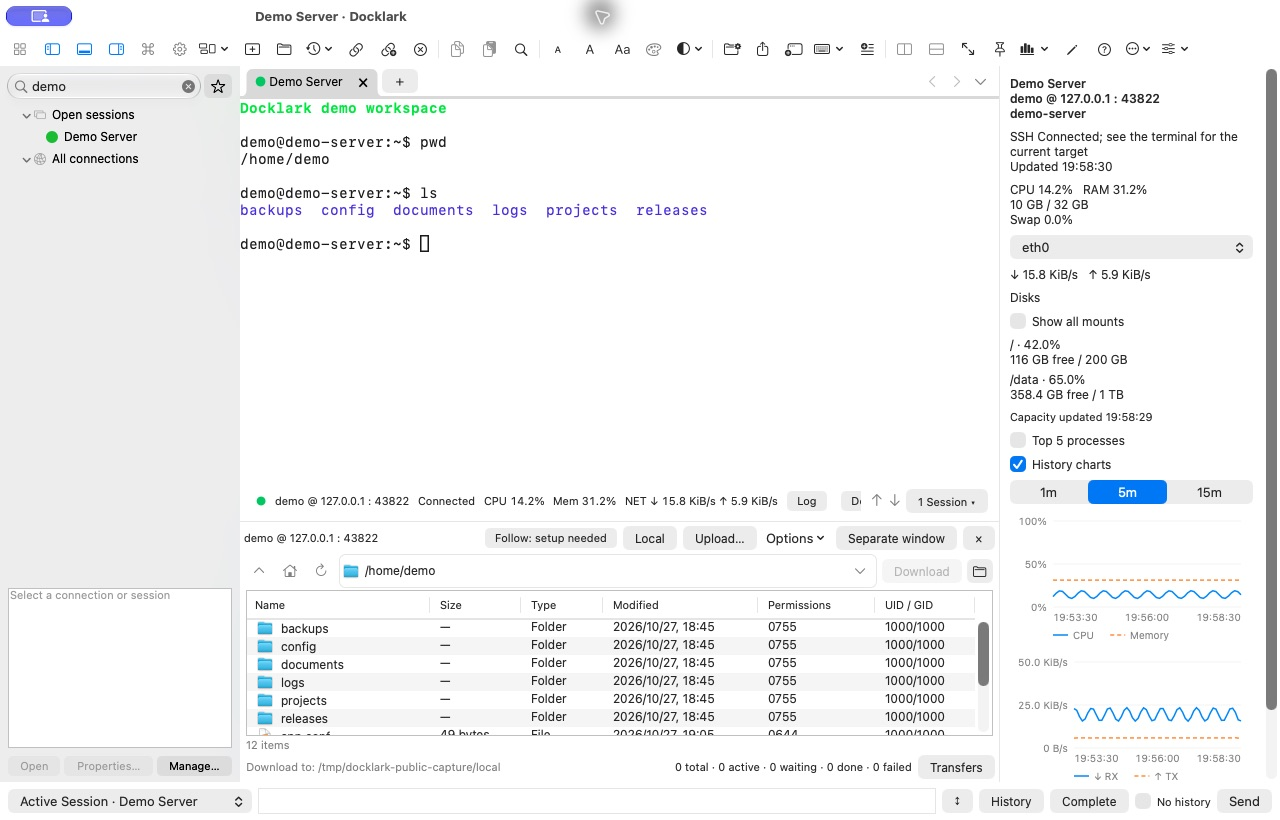
Configured managed SSH jump chains use the final authenticated host. Optional directory following requires shell integration and same-host confirmation; it does not infer a new host from terminal text.
An SSH client creates an authenticated, encrypted connection to a remote SSH server. A terminal emulator provides the window in which a shell runs. These roles often appear together, but changing the terminal interface does not change your server permissions, network route or authentication policy. macOS Terminal can run the system ssh command; a dedicated workspace adds ways to organize the connections you use repeatedly.
For one server and occasional maintenance, start with the tools already on your Mac. If you switch between development and production all day, evaluate how quickly you can find the right saved connection, recognize the active host and arrange related sessions. Docklark focuses on that repeated remote-work workflow. It is not a requirement for using SSH on macOS, and choosing it does not replace an administrator’s access approval.
Ask the server owner for the hostname, SSH port, account name and allowed authentication method. Check whether access requires a VPN, a bastion or a source-IP allowlist. Keep these details separate from the display name you give a connection. A useful label identifies the environment and purpose without exposing passwords or private network details in screenshots. Start with a non-production account when evaluating a new client.
If a connection fails, compare against a standard SSH session in macOS Terminal using the same account, host and port. The example below is a diagnostic starting point, not a Docklark command. Replace the reserved example hostname with a system you are authorized to access. Do not paste a password into the command line or share a private key when asking for help.
ssh -p 2222 user@server.example.comDocklark’s native connection form provides password and private-key options in the installed app. Select the method permitted by the server rather than trying to weaken its policy to fit a client. The username still matters when a key is correct, and a key passphrase is not the same thing as the remote account password. If your existing setup relies on ssh-agent or agent forwarding, verify that exact capability in the current release rather than assuming Terminal-equivalent behavior. Organizations may require an additional interactive verification step; validate your own authentication path before relying on it.
Host-key verification answers another question: whether the server is the machine you intended to reach. Confirm a new fingerprint through an administrator or another trusted channel. An unexpected changed-key warning needs investigation, even if a server rebuild is a plausible explanation. Do not disable host checking as a generic fix. A convenient workspace should help you maintain a deliberate access workflow, not encourage skipping identity checks.
Use a connection folder for a meaningful boundary, such as a team or environment, then name individual connections by their role. Favorites make frequent destinations easier to find; search helps when the list grows. Docklark’s connection manager includes folders, favorites, search and duplication. Review a duplicated connection’s address, account and port before using it, since a familiar display name can hide an unintended destination.
Tabs keep tasks nearby; split panes make related output visible together; separate windows let you keep unrelated work apart. These are layout choices, not guarantees that commands are safe. Docklark’s shared command bar can address selected sessions. Before broadcasting, verify the recipient set and test with a harmless command. Avoid treating a multi-host command as an atomic operation: one server may succeed while another fails.
A bastion connection has more than one destination to reason about. You first reach the entry host, complete its authentication and then select or connect to an authorized asset. Docklark’s documentation separates direct SSH preparation from the JumpServer workflow. Keep both the entry identity and the asset identity visible in your operating procedure; a shell prompt alone is not a substitute for checking where an action will run.
For ordinary or menu-based bastion connections, Docklark’s SFTP and monitoring scope is the SSH entry host. Managed SSH jump chains use the final authenticated host. They do not automatically follow a nested ssh command or a selected JumpServer asset. If a terminal shows an internal server, do not assume the adjacent file browser shows that same server. Ask your administrator which transfer route is approved for the asset, and verify the destination with a small, non-sensitive test before moving operational data.
A timeout usually calls for checking reachability: hostname, VPN, port and network rules. A refused connection suggests the destination responded but no service accepted that connection at the selected port. Permission denied moves the investigation toward the account and authentication policy. These messages describe different stages; repeatedly reinstalling a client is unlikely to resolve a missing network route or an account that is not authorized.
When reporting a Docklark issue, include the application version, macOS version, connection type and the action that failed. Describe whether a comparable Terminal connection worked. Remove credentials, private keys, real internal addresses and identifying output from any screenshot or log. A short reproducible sequence is more useful than a full terminal history. Keep release-specific observations separate from features you saw only in development notes.
The public download currently offers an Apple Silicon arm64 DMG and a separate SHA-256 file. Compare the downloaded file with the published checksum before opening it. A matching checksum checks that the files agree; it does not independently prove code signing, notarization, compatibility or a security audit. Read the download page for the current release instead of assuming every main-source change is already included in the installer.
Run a small evaluation: connect to an approved test host, reopen a saved connection, arrange two sessions, and confirm that the commands and file targets remain clear. Check keyboard behavior and display scaling in your own setup. Minimum macOS support and Intel compatibility are not independently confirmed here. Keep your existing tool available until the tasks you depend on have been verified in the release you installed.
You can use the ssh command in macOS Terminal. A graphical client adds a different way to organize sessions; it is not required to make an SSH connection.
Evaluate the tasks you actually use. Saved connections and a remote workspace do not imply support for every terminal extension, integration or platform. Keep a working fallback during evaluation.
No. The roadmap describes main-source progress. Check the public release notes and test the installer for the capabilities you depend on.
Technical references: Apple Terminal · OpenSSH SFTP manual
These pages were updated against the installed v0.2.96 interface and application documentation. The review covers the visible tools and previews, not complete transfer or authentication acceptance. Minimum macOS compatibility and Intel support are not independently confirmed.