Browse both sides
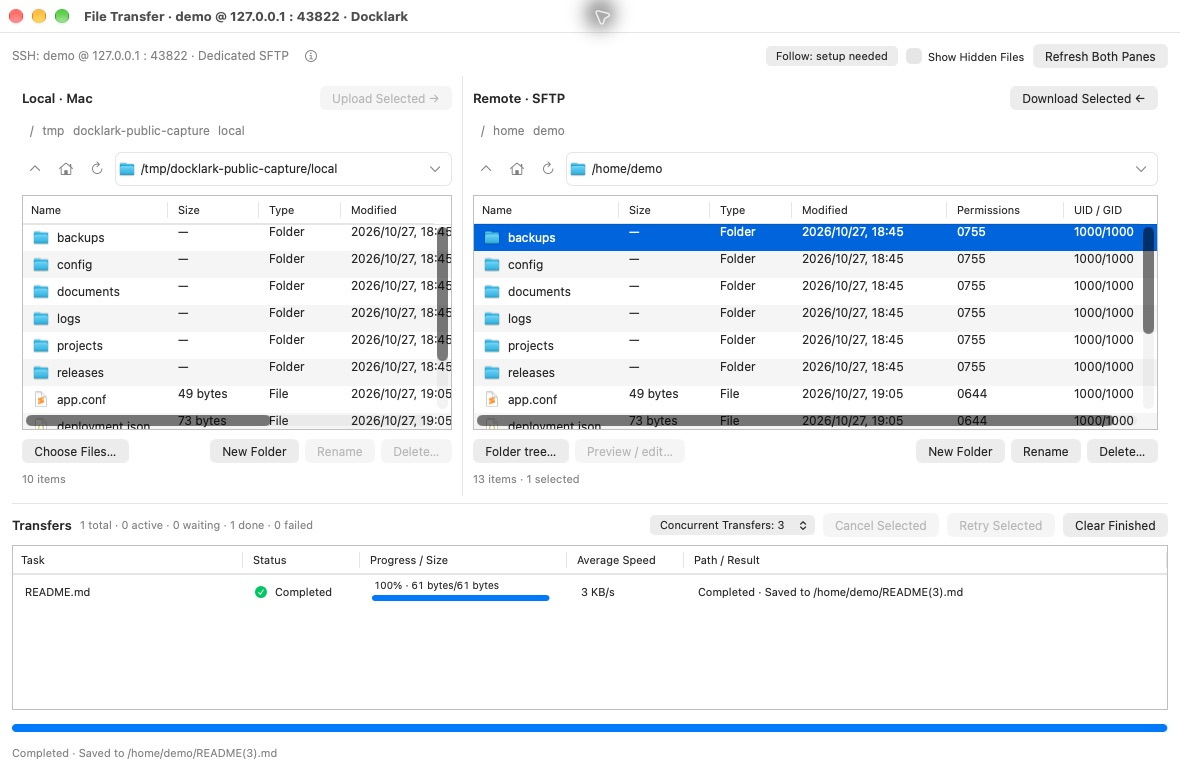
The embedded or standalone SFTP browser shows local and remote directories side by side. Select the intended host and destination before adding files or folders to the queue.
SFTP CLIENT FOR MAC
Explore Docklark SFTP for Mac: local and remote browsing, transfer queues, cancellation and SSH entry-host scope. Learn a safer file-transfer workflow.
Reviewed · Asia/Shanghai
The embedded or standalone SFTP browser shows local and remote directories side by side. Select the intended host and destination before adding files or folders to the queue.
The transfer queue offers progress, cancellation and one to five concurrent files, with three by default. A displayed demo queue is not evidence of a completed transfer.
Existing destination names are not automatically overwritten or merged. Choose a clear destination, transfer a small sample first, and verify the result before larger jobs.
Configured managed SSH jump chains use the final authenticated host. Optional directory following requires shell integration and same-host confirmation; it does not infer a new host from terminal text.
SFTP is a file-transfer protocol carried over an SSH connection. It lets a permitted account work with remote files without using a separate FTP session. A graphical SFTP client adds directory browsing and transfer controls around that connection. It cannot grant access that the server account does not have. The destination still needs an available SFTP service, a reachable network path and an authentication method your client and server can both use.
SFTP, FTP and FTPS are different protocols. A server advertising one does not necessarily support the others. Likewise, terminal-based rz/sz transfers are a different workflow from the SFTP file browser. Docklark’s SFTP page describes the SSH-based file workspace; it is not a promise of FTP, FTPS, cloud-storage mounting or every workflow offered by a dedicated file-transfer application. Match the protocol to the actual service before choosing software.
Confirm the SSH hostname, port, username and approved authentication method with the server owner. Ask which remote directory is intended for your account and whether it is writable. A successful interactive SSH login is useful evidence, but does not by itself prove the SFTP subsystem is available or that the intended directory permits uploads. Test access with a harmless file in a permitted test location before scheduling a large transfer.
For an independent protocol check, the macOS Terminal example below starts a standard SFTP session on a custom port. The capital -P is intentional for sftp; ssh uses a lowercase -p for its port option. Replace the example account and reserved hostname, then inspect the destination rather than uploading immediately. These commands are Terminal diagnostics, not instructions for Docklark’s graphical interface. Never include a password in a shared command example.
sftp -P 2222 user@server.example.comStart by identifying the local source and the remote destination. In Docklark’s development file browser, the two directory views sit beside each other so you can inspect both contexts. Check the connection identity and full destination path before queuing files. A directory that looks familiar may belong to another account or host. For a first run, use a small sample with an unmistakable name and no confidential content.
After the sample finishes, confirm it appears in the intended directory and can be read by the account that needs it. Only then queue the remaining files. Uploading a configuration file is not the same as deploying it: a service may require validation, ownership changes or a controlled reload under your team’s procedure. Keep those administrative actions separate from the transfer, and retain a recoverable copy before any manual replacement.
For downloads, choose a local destination you can identify later and make sure there is enough free space. Do not overwrite your only good copy while diagnosing a transfer problem. Check the remote source path and file modification context before starting: a log or export that is still being written may change during transfer. When consistency matters, arrange a stable snapshot or completed export with the server owner first.
A completed queue item is a useful signal, but important files deserve an additional check. Compare size and, when appropriate, a checksum produced from a stable source. On macOS, the example below computes SHA-256 for a local file; compare it with an independently obtained expected value. A checksum is not an access-control mechanism and does not tell you whether the file is safe to execute. Inspect unfamiliar files before using them.
shasum -a 256 ./sample.txtDocklark’s SFTP implementation includes progress, cancellation and configurable concurrency from one to five files, with three as the default. These controls help you inspect work in progress; they do not establish a transfer-speed benchmark. Start with a small batch and a conservative concurrency setting when the remote service has limits. Your network, server storage and account policy can matter more than the number of parallel transfers.
Existing destination names are not automatically overwritten or merged in the documented implementation. Decide on a clear destination before transferring and inspect conflict feedback rather than assuming replacement happened. Cancellation is also not a rollback guarantee: check whether a partial destination remains before retrying. Do not assume automatic resumption or folder synchronization unless the particular release and workflow have been verified. Verify the final destination after any interrupted operation.
If authentication fails, check the username and permitted method before changing filesystem permissions. If authentication succeeds but a directory cannot be listed or written, ask the administrator to inspect that directory’s ownership, permissions, quotas and restrictions. A jailed SFTP account may intentionally see only part of the filesystem. Avoid making broad permission changes just to get a test upload working; request the minimum access required for the task.
For a stalled or interrupted transfer, record the file size, operation, application version and whether a small file works. Check connectivity and server space, then inspect both endpoints before retrying. Filename interpretation can differ across servers; test representative names in a safe directory rather than renaming production data in bulk. Share a sanitized reproduction instead of private file contents, credentials or raw server logs.
Docklark is worth evaluating when remote shell sessions and occasional file work belong to the same task. If your requirements include automated synchronization, storage-provider integrations, unattended scheduling or a mandated audit workflow, assess those separately against tools that explicitly document them. A terminal workspace and a specialized transfer client can be complementary. Choose based on your actual protocol, host-access path and verification needs rather than a longer feature list.
For the current Apple Silicon download, treat the public installer and main-source feature descriptions as separate evidence. Verify your own upload and download tasks on a test host before relying on them for production. The screenshot on this page illustrates the documented file workspace; it does not certify transfer throughput or the behavior of every server. Read the release page, practical guide and host-scope note together before deciding whether the workflow fits.
No. The server must provide SFTP and permit that account to use it. Directory access and upload permissions are separate checks.
In Docklark’s documented scope it addresses the SSH entry host, not a later selected asset or nested SSH destination. Confirm an approved transfer route for the actual target.
Do not assume rollback or automatic cleanup. Inspect the destination after cancellation and before retrying or using the result.
Technical references: Apple Terminal · OpenSSH SFTP manual
These pages were updated against the installed v0.2.96 interface and application documentation. The review covers the visible tools and previews, not complete transfer or authentication acceptance. Minimum macOS compatibility and Intel support are not independently confirmed.